Introduction
Admin page layout
The parts of the admin page and what each one does.
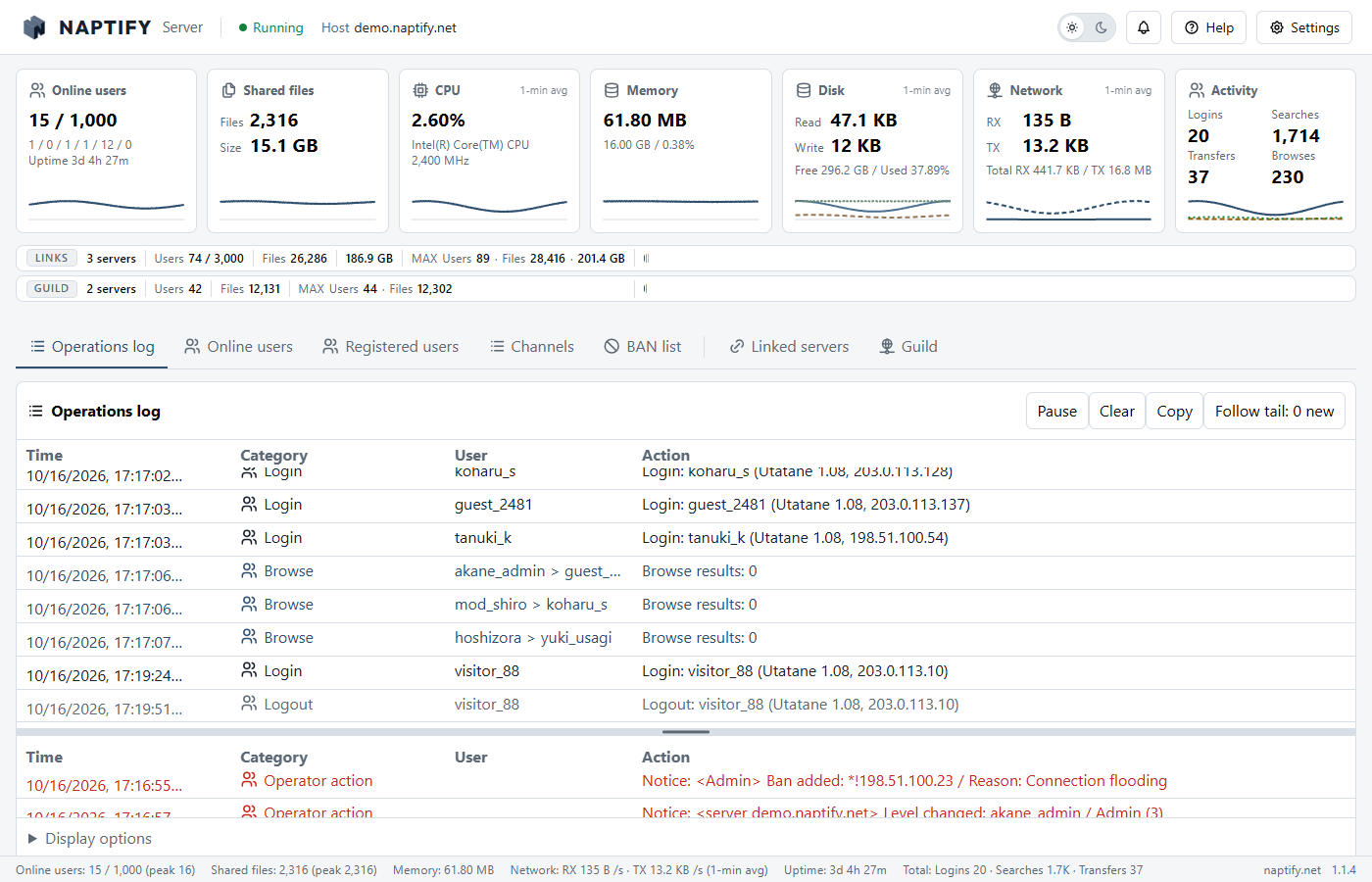
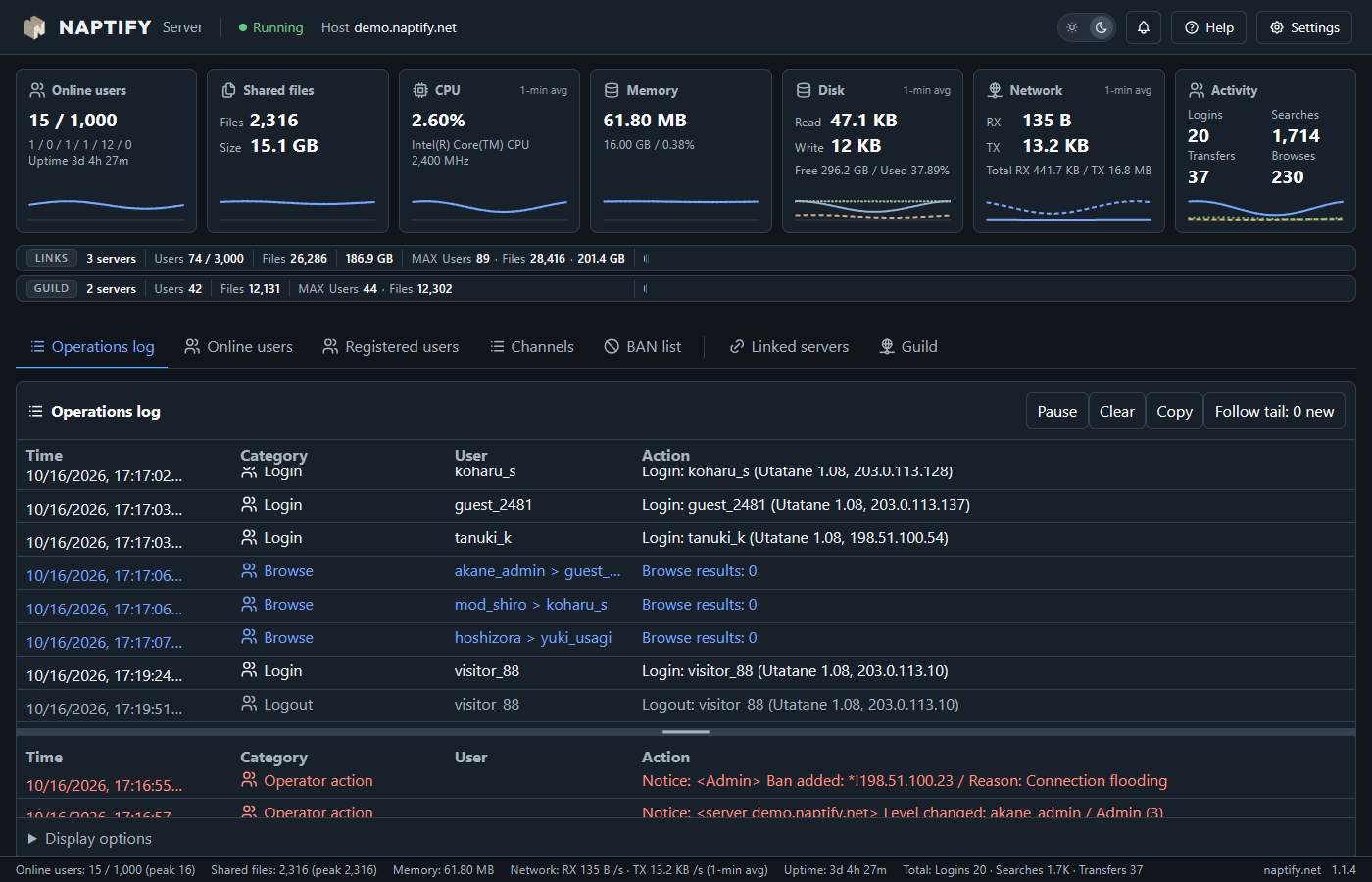
| Header | The server state (Running) and the host name. On the right: the light/dark theme switch and the Chat, Help and Settings buttons |
| Online users to Activity | The Online users, Shared files, CPU, Memory, Disk, Network and Activity cards: the current state of the server and the last 24 hours. See “Dashboard” for details |
| LINKS, GUILD | The size of the network joined through links and guilds. Shown only while connected |
| Tabs | Switch between Operations log, Online users, Registered users, Channels, BAN list, Linked servers and Guild |
| Chat | Channels joined as Console, private messages from users, and server notices. The button shows the number of new items |
| Help | How to use the page, and About (version, developer, website and more) |
| Settings | Server settings. Choose a section from the contents on the left. The language of the admin page is switched at the top right |
| Bottom edge | Online users, shared files, memory, network, uptime and totals (logins, searches, transfers), plus the version |
Hover over the “?” next to a setting (or select it with the keyboard) to see what the setting does.
Introduction
Dashboard
The current state of the server, the last 24 hours, and the operations log.


| Online users | Users online and the capacity, users by level, and uptime |
| Shared files | The number of shared files (Files) and their total size (Size) |
| CPU | CPU usage (1-min avg), and the CPU name and frequency |
| Memory | Memory used by naptify-server and its share of the PC’s memory |
| Disk | Read and write speed (1-min avg), free space and usage |
| Network | Receive (RX) and transmit (TX) speed (1-min avg) and totals. P2P file transfers between users are excluded |
| Activity | Counts of logins, searches, transfers and browses |
| LINKS, GUILD | Servers joined through links and guilds, with users (Users), files (Files), total size and records (MAX). A bar shows each server’s share of the users |
| Operations log | A record of logins, logouts, searches, browses, transfers, operator actions and more. The lower pane shows operator action notices. Drag the divider to change the heights |
| Pause, Clear, Copy | Pause the operations log, clear what is shown, or copy it |
| Display options | Choose what the operations log shows, such as login and logout messages, search requests, file transfers and browse requests |
The line at the bottom of each card shows the last 24 hours. Each card uses its own scale.
Server and connections
Connection settings
Settings for where users connect and for connections from outside.
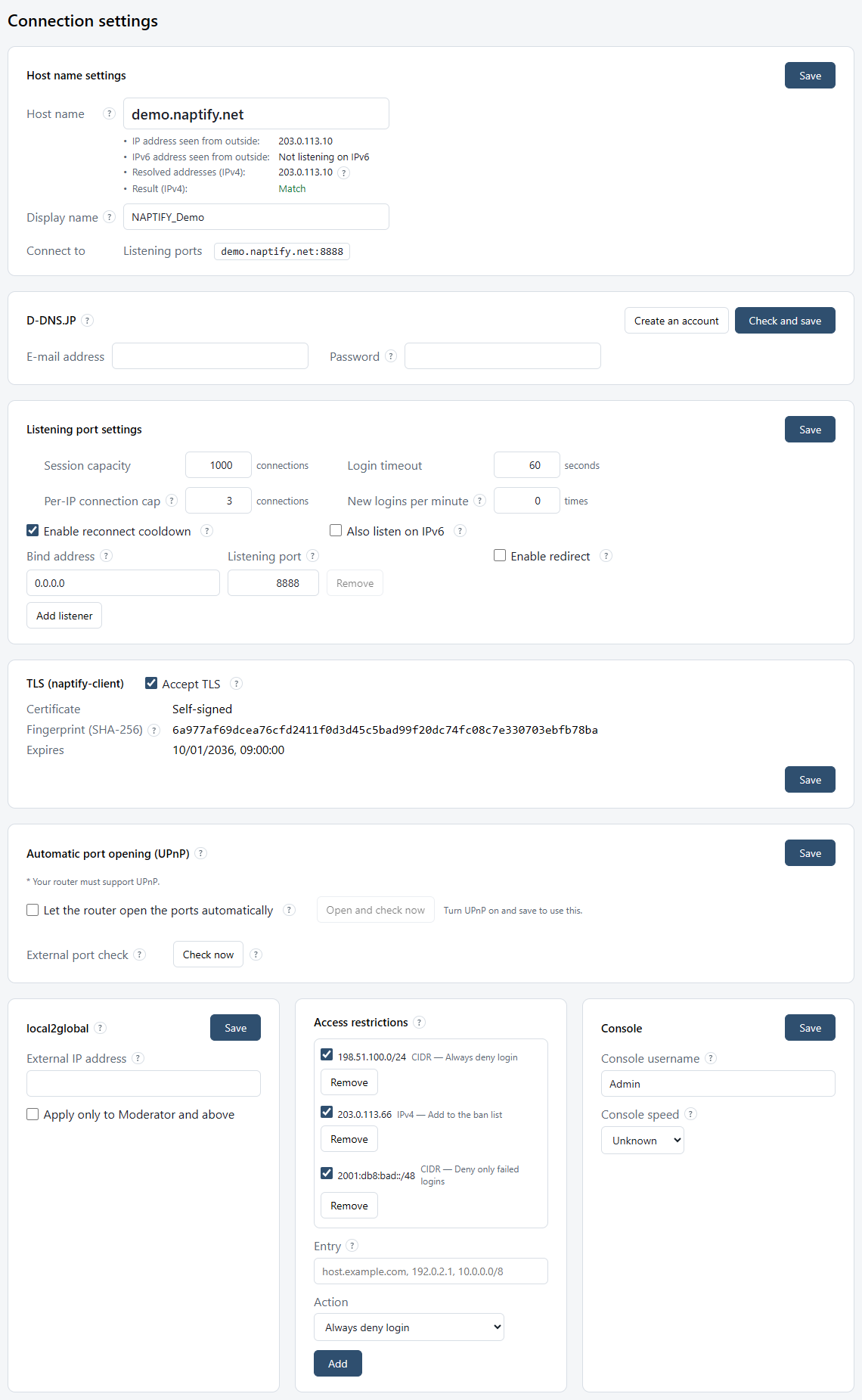
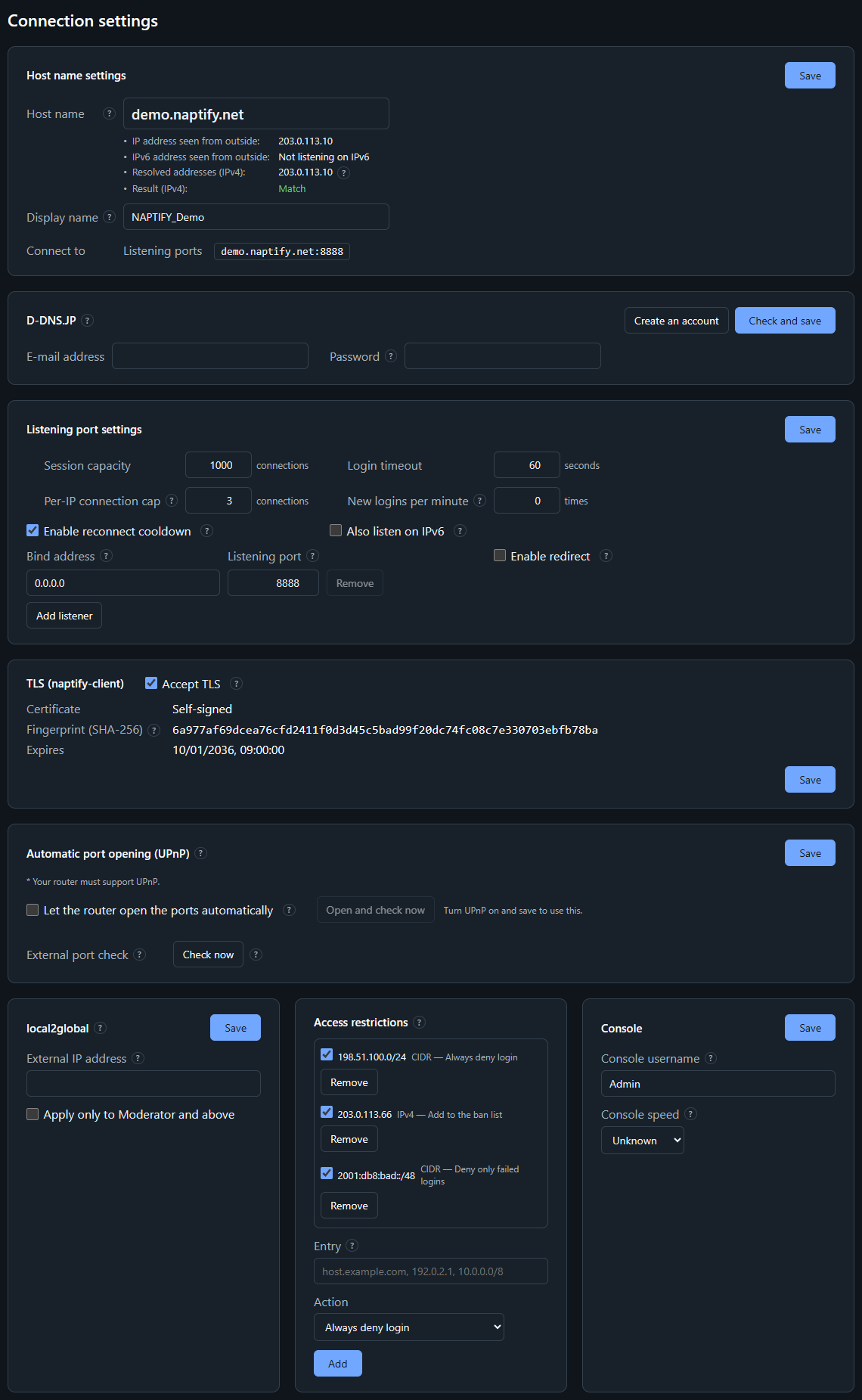
| Host name | The host name users enter in their clients. Also used when redirecting users to this server. Below the field, a list shows the externally visible IP address, what the host name resolves to and the verdict (Match, Mismatch, Not reachable from outside, Could not check). When they do not match, the likely cause and the effect are shown too. |
| Display name | The server name shown to users. If left blank, the host name is shown. |
| D-DNS.JP | Links a D-DNS.JP account. Once linked, the server tells D-DNS.JP automatically whenever the IP address changes (no update tool such as DiCE is needed). |
| Session capacity | The maximum number of users connected at the same time. |
| Login timeout | How long a new connection may take to finish signing in (60 seconds by default). Connections that take longer are closed. |
| Per-IP connection cap | The maximum number of connections from one IP address. 0 means unlimited. Connections from this PC or the LAN are never limited. |
| New logins per minute | The maximum number of new logins accepted per minute. 0 means unlimited. |
| Enable reconnect cooldown | Refuses rapid reconnects for 180 seconds. |
| Bind address | The address to listen on. Use 0.0.0.0 (or :: for IPv6) to listen on all interfaces. |
| Listening port | The ports that accept connections from clients. Multiple ports can be specified. |
| Also listen on IPv6 | For each 0.0.0.0 entry, also listens on the IPv6 address ::. |
| Redirect | The redirect ports that serve as the entry point, and whether distribution is enabled. |
| TLS (naptify-client) | Encrypts connections from naptify-client (“Accept TLS”, on by default). Uses the D-DNS.JP certificate (the same as admin HTTPS), or a self-signed certificate created automatically. Shows the certificate in use, its expiry and its fingerprint (SHA-256); with a self-signed certificate, give this fingerprint to users. |
| Automatic port opening (UPnP) | Asks the router to forward the listening ports to this PC. “Open and check now” shows what the router said and whether the port was reached from outside. Off by default. |
| External port check | Checks reachability from outside and obtains the external IP address through D-DNS.JP. |
| local2global | At sign-in, replaces the IP address of users who connect from the server’s LAN with the external IP address; transfers, direct browse, whois and links all use the replaced address. The external IP address is normally detected automatically. |
| Access restrictions | What to do with logins from a host name, IP address or network: Always deny login, Deny only failed logins, Clear consent and re-authenticate, or Add to the ban list. |
| Console | This server’s Console name (Console username) and the connection speed shown for it (Console speed), as returned to compatible clients. |
Each card is saved with its own Save button. The display name and the host name given to linked servers take effect the next time the server starts.
Server and connections
Operation
Settings for who can open the admin page, update checks, startup and language.
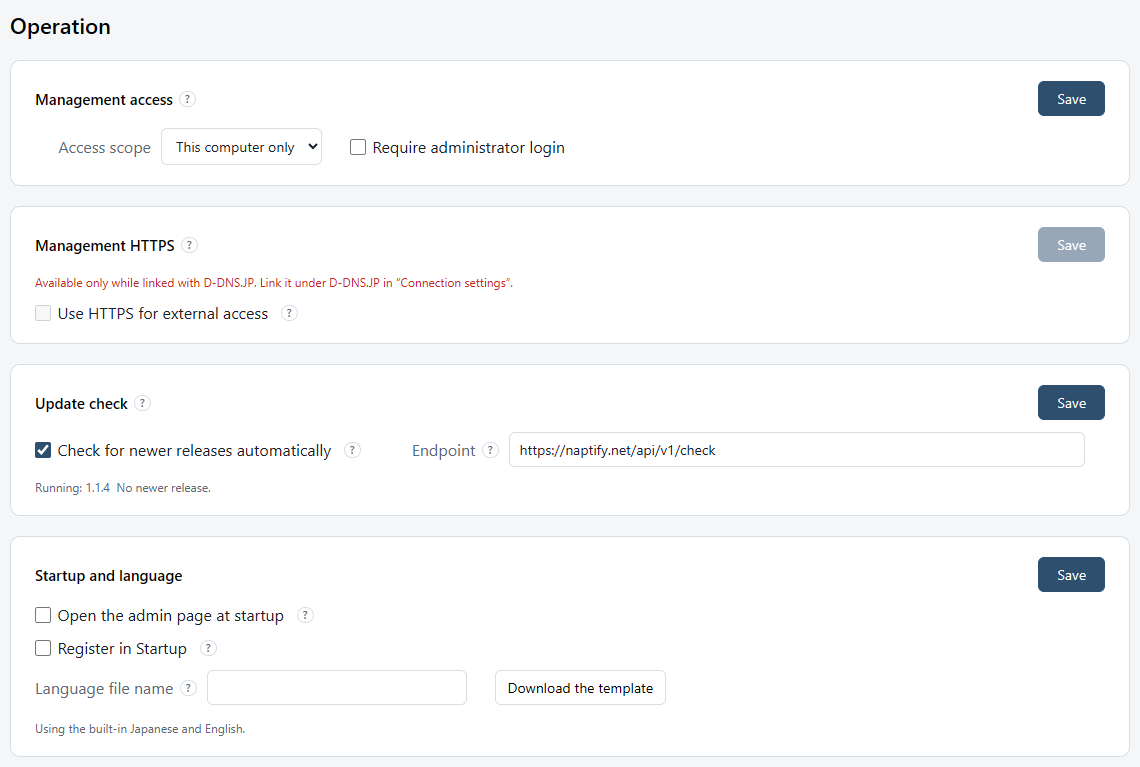
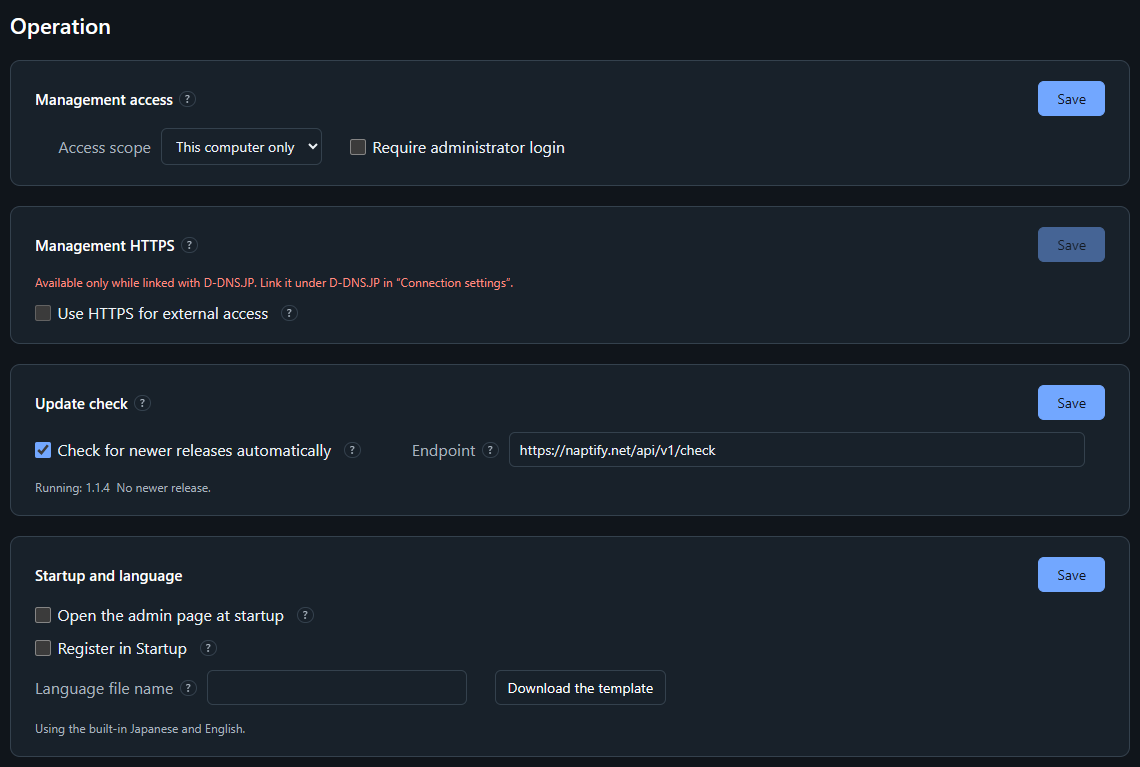
| Access scope | Where the admin page can be opened: This computer only, LAN only, or External access. “LAN only” allows only PCs on the same LAN (no password needed) |
| Require administrator login | Asks for a login to open the admin page. Required for external access. The user name and password are separate from registered users |
| Management HTTPS | HTTPS encryption when the page is published with External access. D-DNS.JP issues and renews the certificate (Let’s Encrypt). Available only while linked with D-DNS.JP |
| Update check | Asks the distribution site now and then and tells you when a newer release exists. Only the product, version, OS and CPU are sent. Downloading and installing are up to you |
| Endpoint | Where the update check asks. Only addresses beginning with https:// are accepted. Saving it empty restores the default (the distribution site) |
| Open the admin page at startup | Opens the admin page in your browser when the server starts. Off by default. Takes effect from the next startup |
| Register in Startup | Starts naptify-server when you sign in to Windows and keeps it in the notification area. It is not a Windows service, so it runs only while you are signed in |
| Language file name | A language file other than Japanese and English (a .lng file in the languages folder). One file holds both the protocol messages and the admin page and tray texts. If blank, Japanese and English are used |
Remove the Startup registration before uninstalling naptify-server by deleting its folder.
Server and connections
Data and logs
Settings for database backups and restores, how long logs are kept, and the diagnostic log.
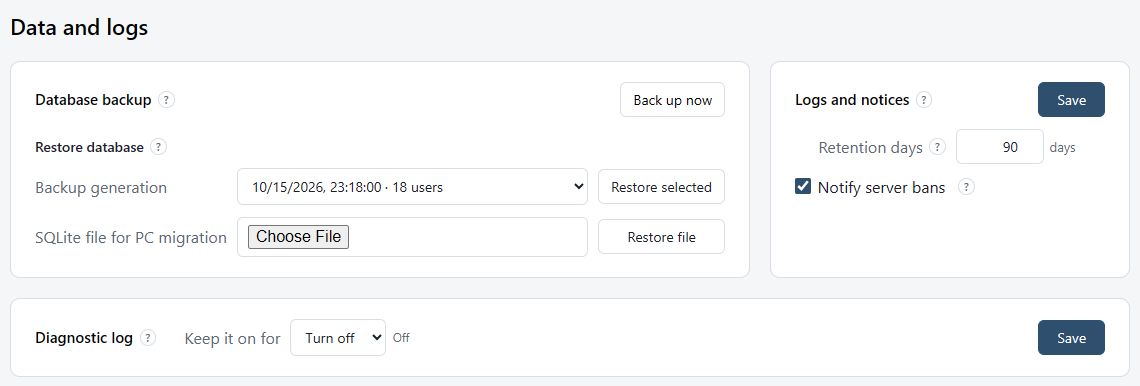
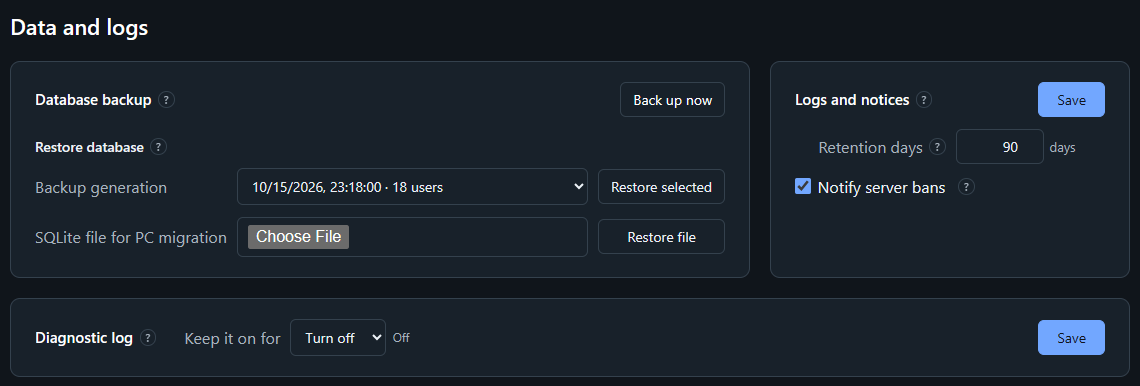
| Database backup | Backs up main.sqlite every hour when it has changed. “Back up now” runs a backup by hand |
| Restore database | Restores from a backup generation or from an SQLite file for PC migration. See “Backup and restore” for the steps |
| Retention days | One retention period for statistics, audit records, log files in the logs folder and backups. 90 days by default |
| Notify server bans | Shows this server’s automatic bans (download and queue floods, access rules) and bans received from linked servers to Moderators and above and in the operator notices. On by default |
| Diagnostic log | For the span chosen in “Keep it on for” (1 hour, 6 hours or 24 hours), records everything and writes the server’s diagnostic lines and why each connection ended to logs\diagnostic-YYYYMMDD.log. Returns to normal when the span ends |
Users and moderation
Login settings
Settings for who can log in, terms acceptance, password and user name rules, and password reset emails.
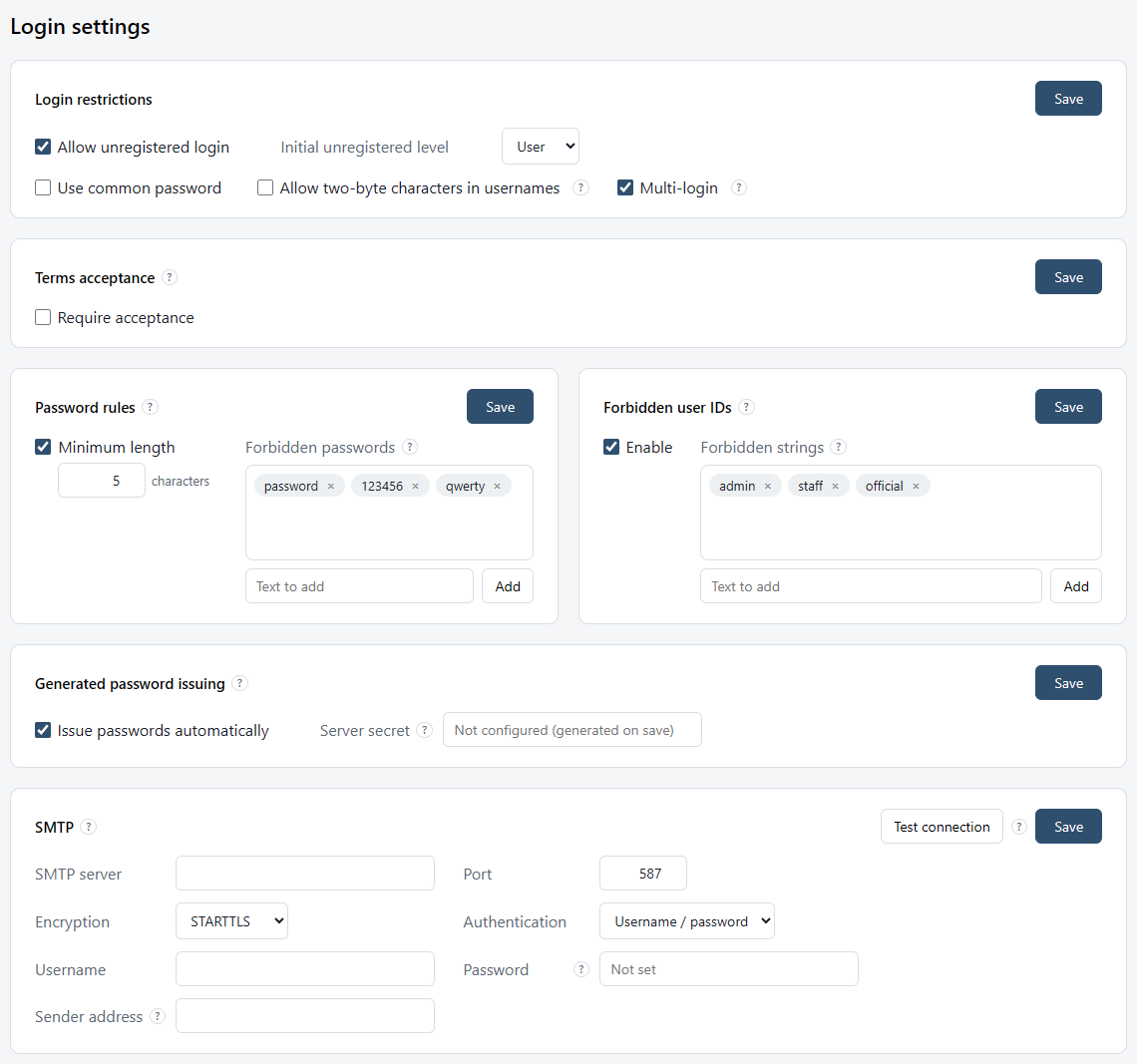
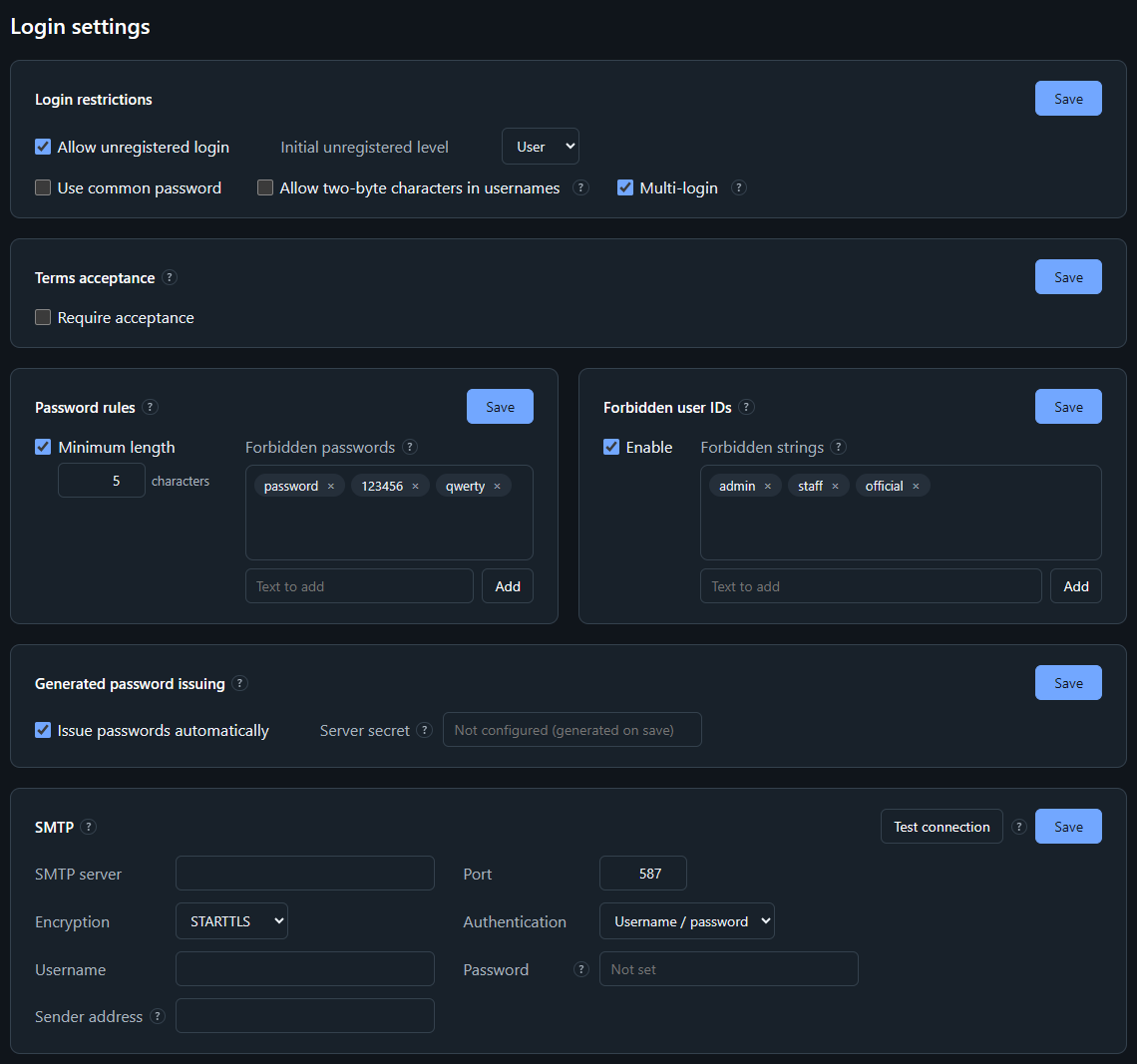
| Allow unregistered login | Whether users who are not registered can log in, and their initial level (User or Leech) |
| Use common password | Uses a common password. Logins that do not match it are refused |
| Allow two-byte characters in usernames | Allows user names such as Japanese ones. When off, only letters, digits and _ [ ] { } – @ ^ $ can be used |
| Multi-login | Lets one registered user sign in from several devices at the same time (off by default). When off, a second sign-in is refused as before. Switching does not disconnect connected devices. See Multi-login for details |
| Terms acceptance | Sends the terms at login and blocks search, browse and download until the user replies with the acceptance phrase. Messaging is never blocked |
| Password rules | The minimum password length and forbidden passwords. A password equal to the user name is always refused |
| Forbidden user IDs | Refuses user names that contain a listed string (substring match, not case-sensitive). Level names are always reserved |
| Generated password issuing | Issues an initial password when a user is registered with a blank password. The value is shown right after registration and in the operations log |
| SMTP | The SMTP server used only for password reset emails sent by an administrator. “Test connection” checks the connection without sending mail |
Users and moderation
User management
Lists of online and registered users, actions on users, and the display names of user levels.
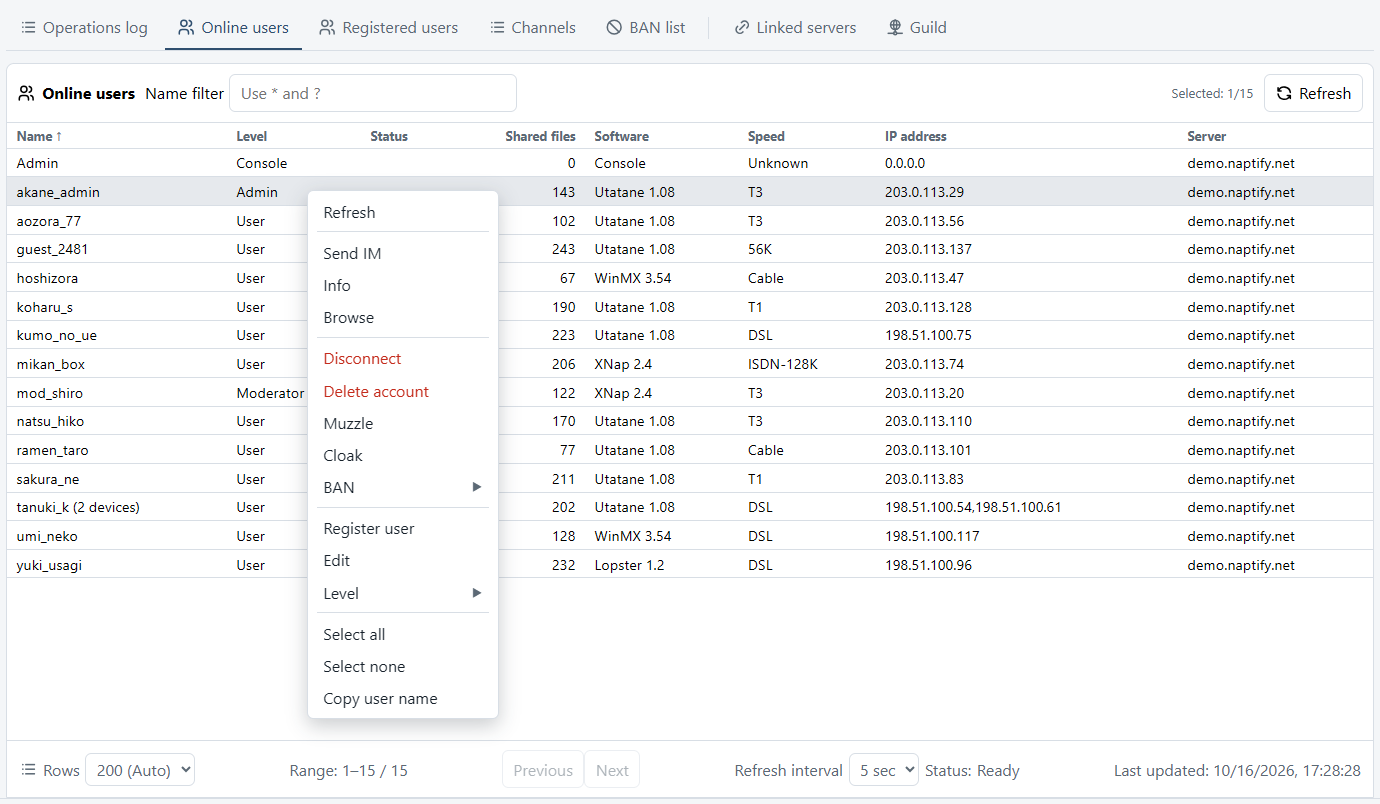
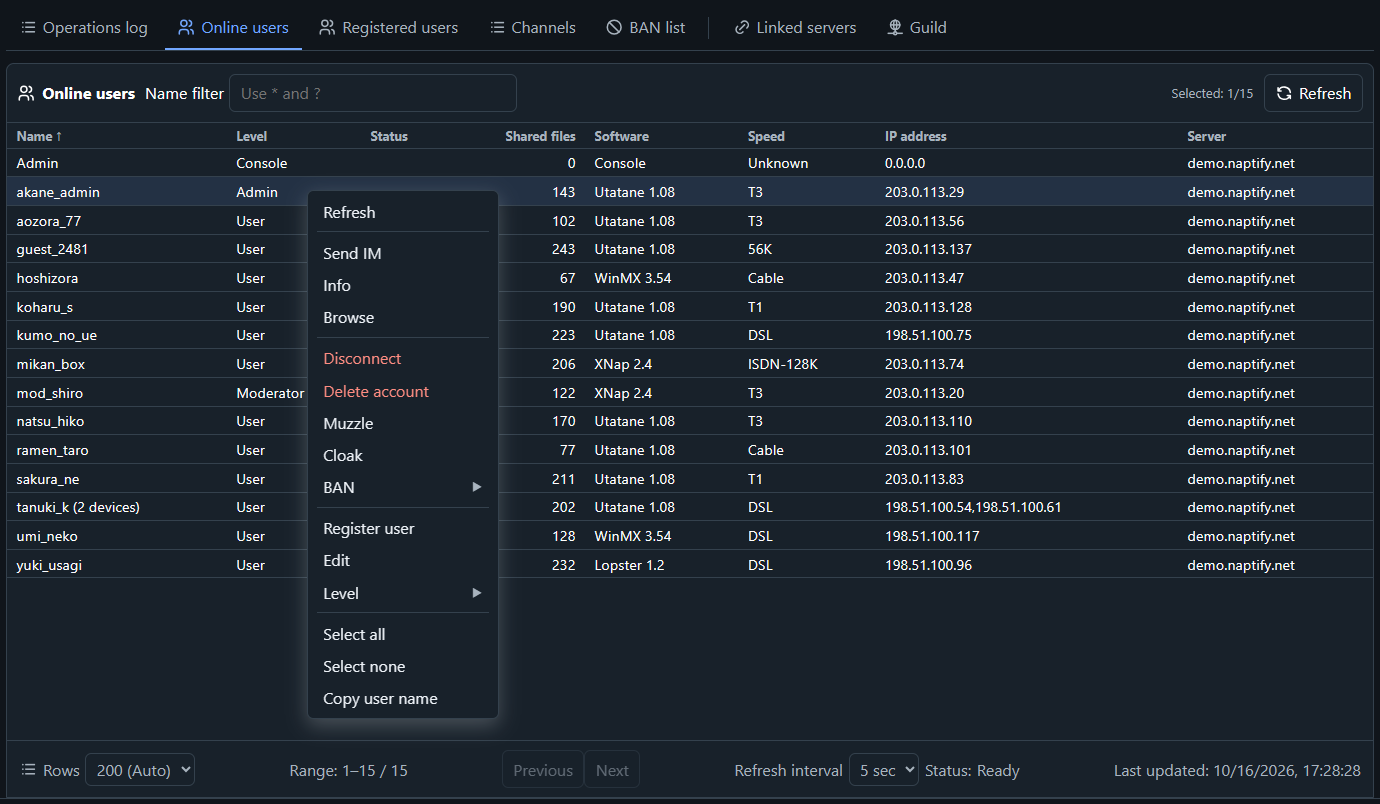
| Online users | Users who are online (Name, Level, Status, Shared files, Software, Speed, IP address, Server). Use * and ? in “Name filter”. A multi-login user takes one row, with the number of devices after the name and the IP addresses of all devices separated by commas |
| Registered users | Registered users (User, Level, Status, Points, Downloads, Uploads, Last IP address, Last visit). The “Online rate” column shows the share of time online, averaged over 7 days |
| User actions | The menu opened by right-clicking a row: Send IM, Info, Browse, Disconnect, Delete account, Muzzle, Cloak, BAN (ID BAN, IP BAN), Register user, Edit, Level and more. Select several rows to act on them together. For a multi-login user, Info shows each device’s IP address, port, software and sign-in time |
| Add | Registers a user from Registered users. Leave the password blank to issue an initial password automatically |
| Edit | Changes a registered user’s password, adjusts points, adds or removes a friend, and sets the email address for password reset emails |
| User level display names | The level names shown to clients (in the User management section of Settings). Names set here cannot be registered as user names |
| Keep connection details for Leech users | Keeps the last visit time and source IP of Leech users (in the User management section of Settings). Only the most recent visit is kept. Off by default |
Users and moderation
Ban / block settings
Managing the BAN list, and settings for ban durations, blocked clients and blocked filenames.
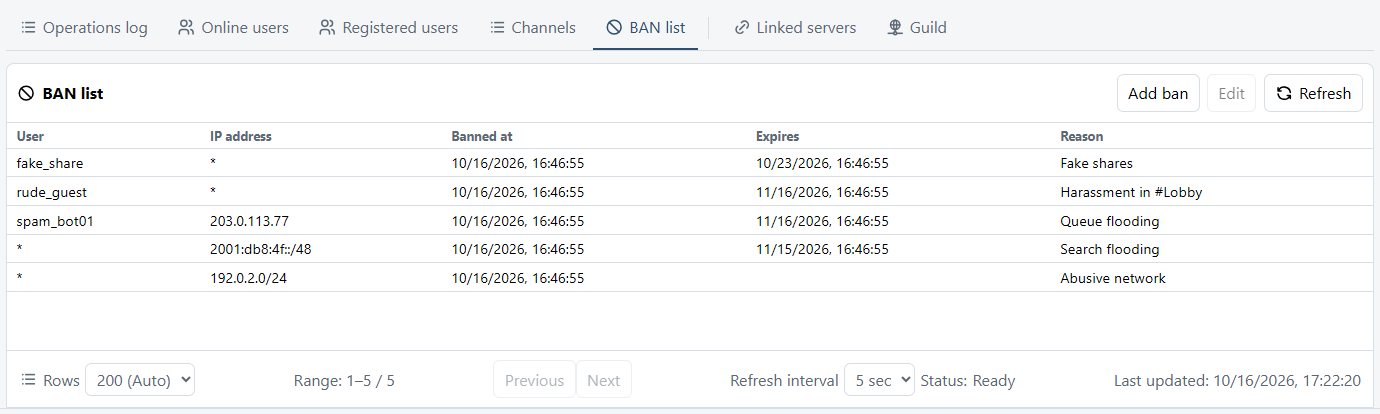
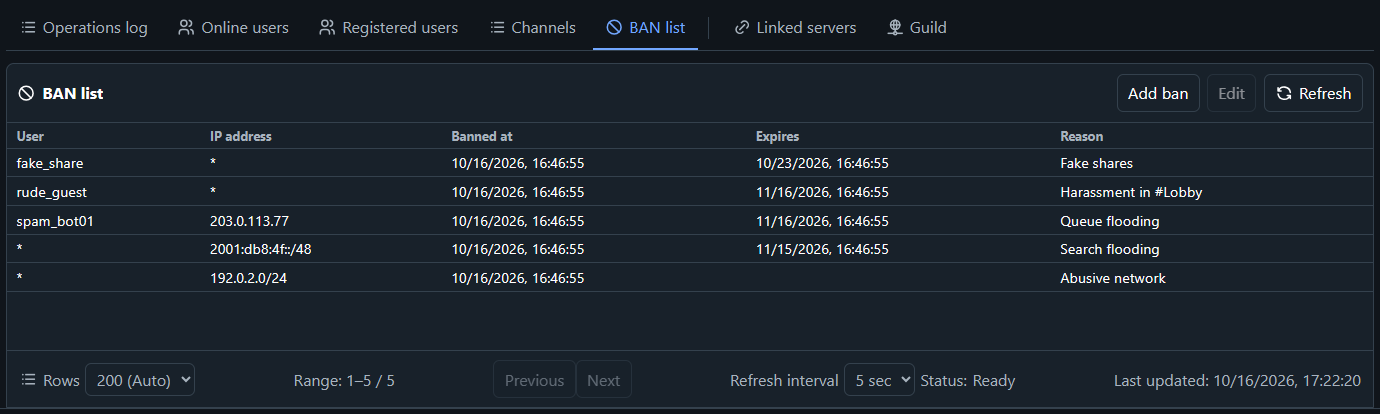
| BAN list | All bans (User, IP address, Banned at, Expires, Reason) |
| Add ban | Either the user or the IP address is enough, and the wildcards * and ? are allowed. The duration can be Forever. The ban is also sent to linked servers |
| Unban | Lifts a ban. A reason can be entered |
| Default ban duration | The number of days used for bans given without a duration (the Bans card in Settings). 31 by default, or 7 when imported from FaceNap |
| Blocked clients | Refuses logins by client name. Enabled rules are checked from the top, and the first match is refused (Exact, Starts with or Contains) |
| Blocked filenames | Refuses shares whose file name (the part after the last \ or /) contains a listed string. Case and full-width/half-width are distinguished |
You can also ban from the BAN item of the right-click menu in Online users (ID BAN or IP BAN). The user is banned and then disconnected.
Sharing, chat and points
Sharing / search settings
Settings for search results and frequency, limits on shared files, minimum shares, and transfer requests.
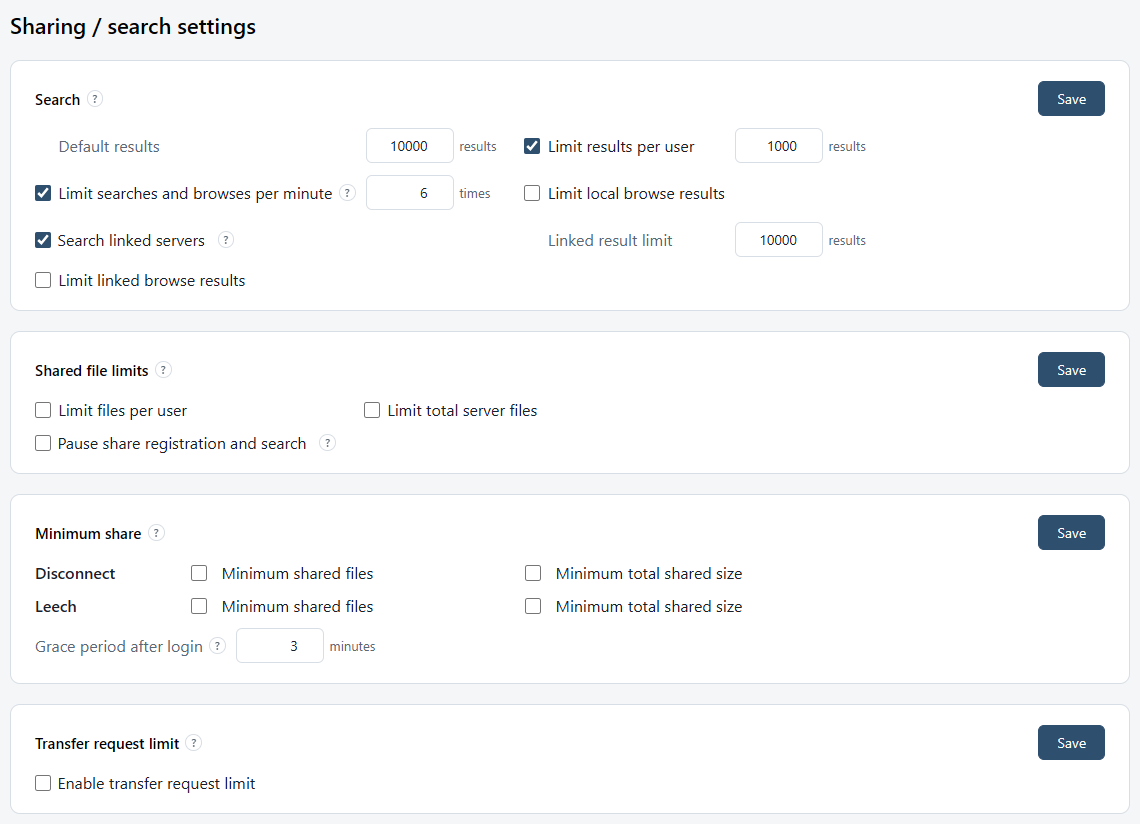
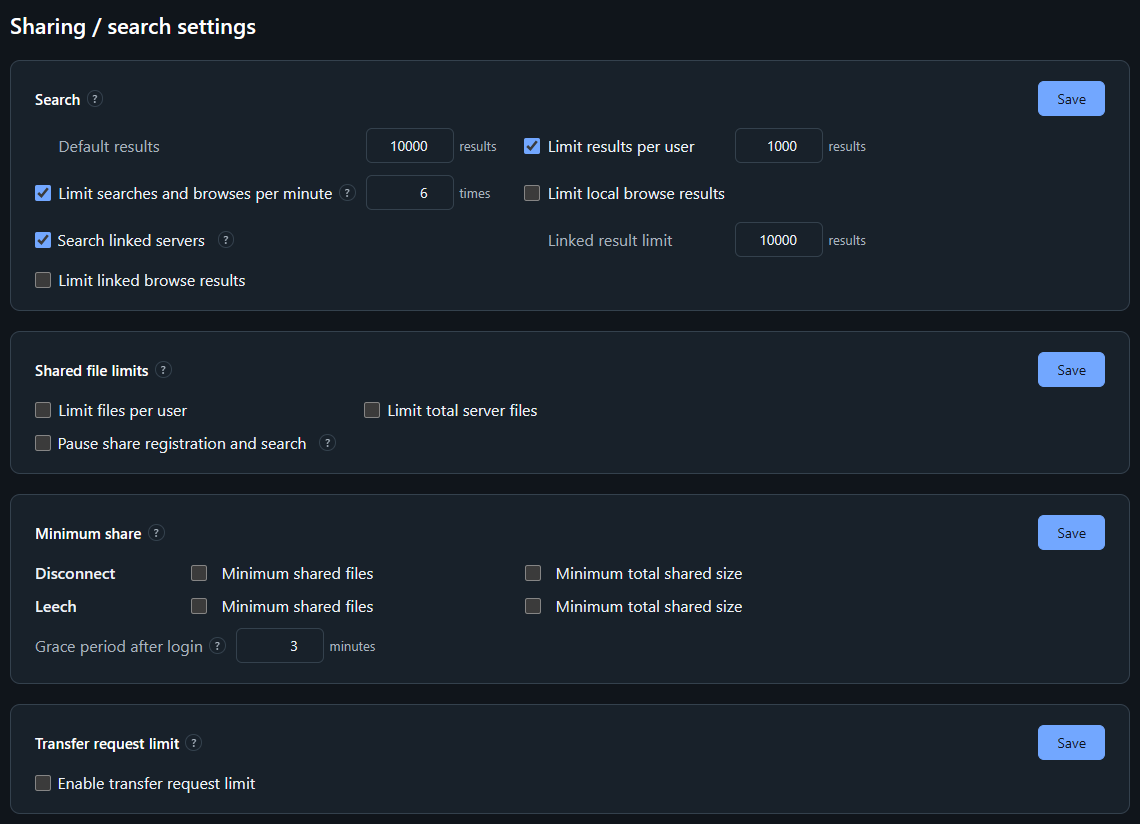
| Default results | The number of search results. A smaller number requested by the client is kept |
| Limit results per user | The maximum number of results returned from one user’s shares |
| Limit searches and browses per minute | The maximum number of searches and browses combined per minute |
| Search linked servers | Searches linked servers as well. Local search continues when off. The maximum is set in “Linked result limit” |
| Shared file limits | Limits on shared files per user and for the whole server. Existing shares stay; only new ones are refused. “Pause share registration and search” pauses share registration, search and browse |
| Minimum share | What to do with users who share too little (Disconnect or Leech), judged by the number and total size of shared files, with a grace period after login |
| Transfer request limit | When download requests exceed the limit, new requests are stopped for a while |
Sharing, chat and points
Channels
The channel list, channel registration, and channel settings.
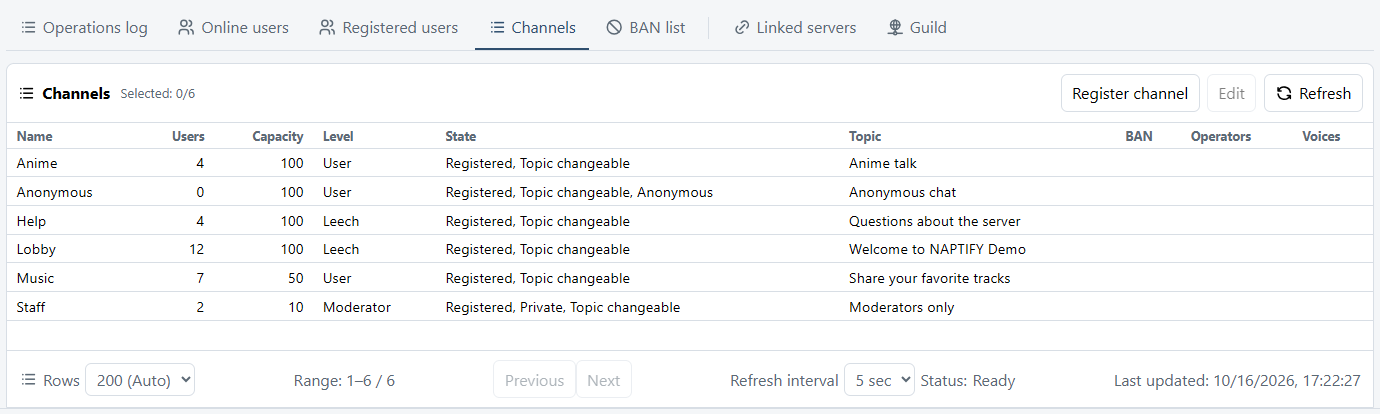
| Channels | All channels (Name, Users, Capacity, Level, State, Topic, BAN, Operators, Voices) |
| Register channel | Registers a channel with its name, topic, level and capacity. It can also be made Private (hidden from the list) or an Anonymous channel |
| Channel actions | The menu opened by right-clicking a row: Join (as Console), Properties, Add channel, Delete and Copy channel name |
| Channels per user, Server channel limit | How many channels one user can be in (up to 15) and how many channels the server can have (the Channel settings card in Settings) |
| Allow users to create channels | Whether users can create channels. Registered channels stay available when off |
| Automatic forced entry | After login, users are placed in registered channels in display order. Only the channel password is bypassed; other restrictions still apply |
| Save channel logs | Writes joins, leaves and messages to the logs folder. One retention period for all channels |
| Flood Block | Limits repeated channel messages and emotes from User level and below, and mutes for a while. Moderators and above can unmute by hand |
After joining a channel as Console with Join, you can read and post in it from Chat in the header.
Sharing, chat and points
Messages
Chat in the admin page, and settings for private messages, offline messages, announcements, the login notice and the MOTD.
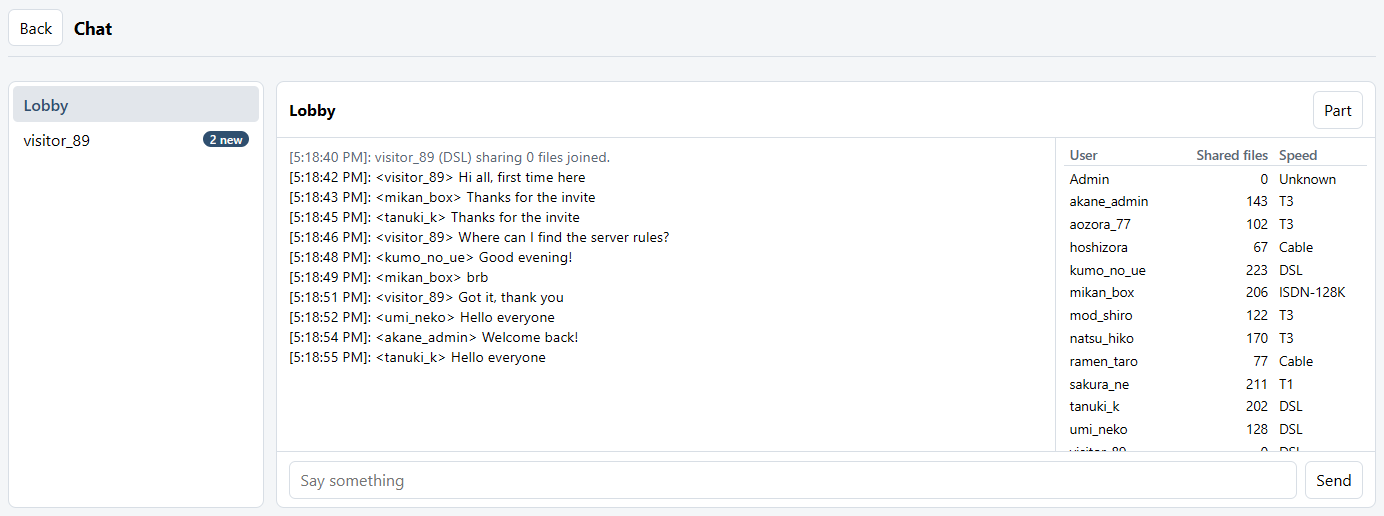
| Chat | Opened from Chat in the header. Shows the messages and members of channels joined as Console, private messages from users, and server notices. You can also post and reply |
| Private messages | The maximum IM size (8192 bytes by default), counted in the sending client’s encoding. Oversized messages are not sent |
| Messages | Messages for users who are offline, delivered at their next login. On by default |
| Announcement bot | Sends a multiline message (Interval, Maximum per user, Sender name, Message). Counts reset only when the message changes |
| Login notice | Sends one multiline message after a successful login (Sender, Message) |
| MOTD | Text sent line by line at login, right after the version and host name lines (MOTD text). Variables such as $user$ and $users$ are replaced with each user’s values when sent (the card lists them). Lines starting with “;” are not sent, and users with the -MOTD user mode do not receive it. MOTD requests from clients get the same content |
Sharing, chat and points
Points
Settings for points earned and spent through searches, transfers and messages, and the restrictions based on them.
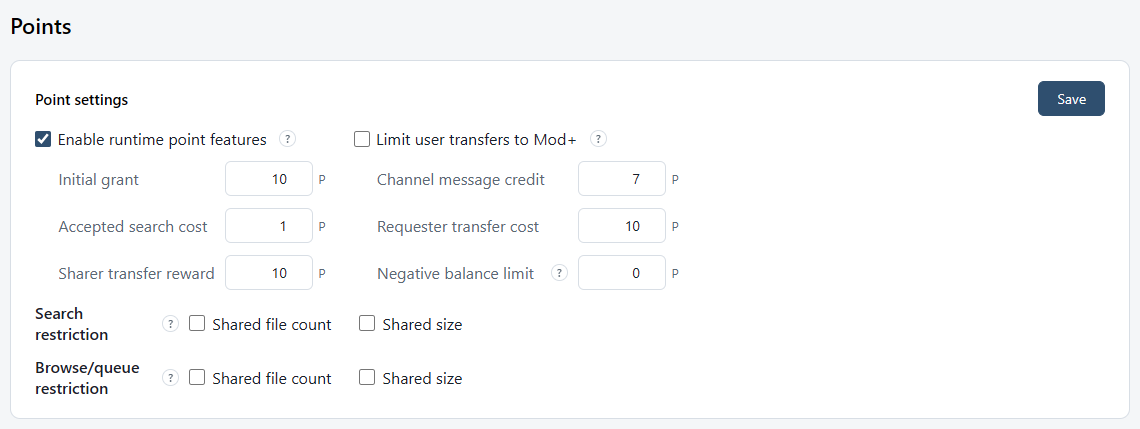
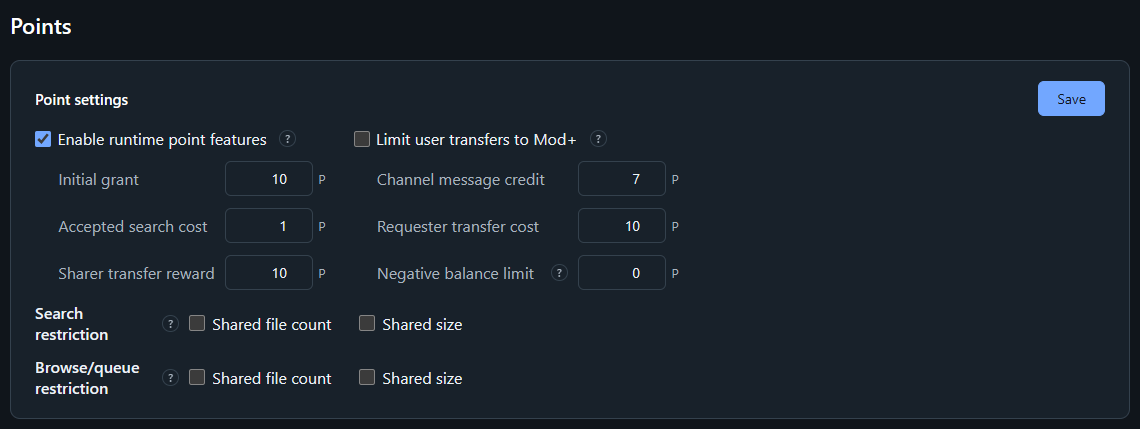
| Enable runtime point features | Turns earning, spending and point restrictions on or off. Saved values and administrative adjustments remain when off |
| Limit user transfers to Mod+ | Only Moderators and above can send points with >point username amount |
| Initial grant | Points given to a new user |
| Channel message credit | Points earned by posting in a channel |
| Accepted search cost | Points spent when a search is accepted |
| Requester transfer cost | Points spent by the user who requests a download |
| Sharer transfer reward | Points earned by the user who shares the file |
| Negative balance limit | How far a balance may go below zero. With 0, balances never go negative. Users at the floor are refused searches and download requests |
| Search restriction | Refuses searches from users whose shared file count or shared size falls short. Moderators and above, and friends, are exempt |
| Browse/queue restriction | Refuses browsing other users’ lists and joining download queues for users who share too little. Moderators and above, and friends, are exempt |
Each user’s points are shown in the Registered users list and can be adjusted with Edit.
Server-to-server connections
Linked servers
Managing and configuring links between servers run by the same operator.
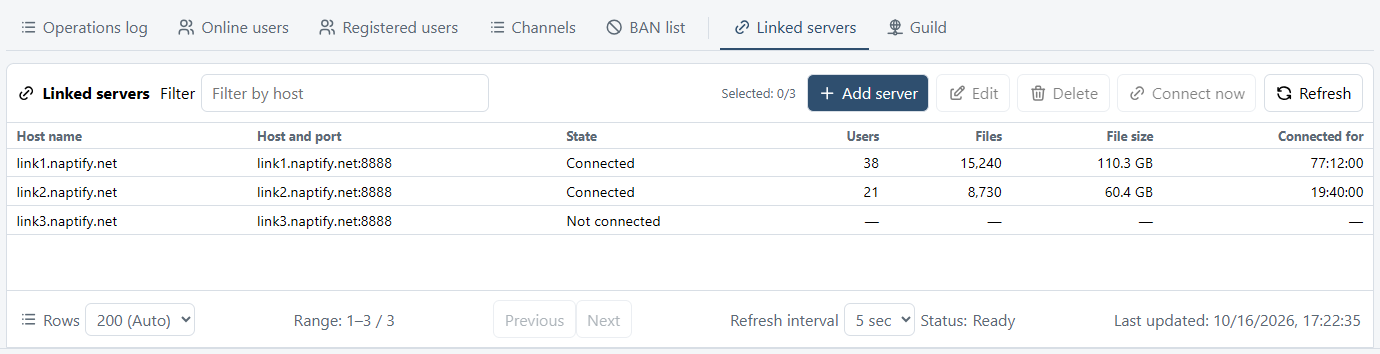
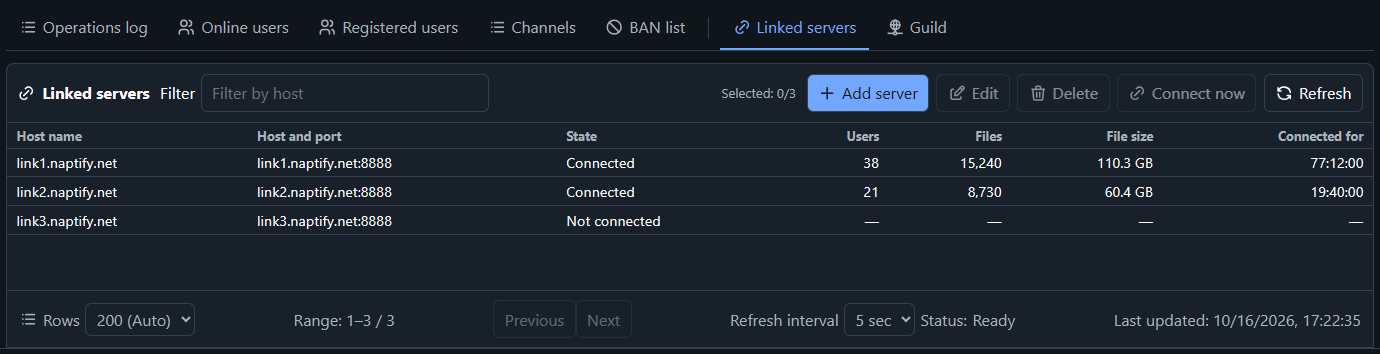
| Linked servers | All linked servers (Host name, Host and port, State, Users, Files, File size, Connected for). The state is Not connected, Connecting, Connected or Connected (via …) |
| Add server | Set the host name, port, password, remote password, authentication (Resolve host name or Check password), LAN address, compression, Connect on its own (at startup and after a drop), reconnect interval, Use as redirect target, and a comment |
| Connect now | Starts connecting to the selected linked server |
| Link settings | Run as hub, Synchronize BAN list, Synchronize registered accounts, Accept remote users, Synchronize blocked file list and Direct link limit (the Linked servers section of Settings) |
| Extended report | A legacy report.php-compatible feature. Anyone who connects to its dedicated port (1228 by default) gets one plain-text table of the whole network (the Extended report section of Settings) |
Deleting a linked server takes effect after a restart.
For the difference between Link and Guild, see Guild.
Server-to-server connections
Guild
Managing cooperation with servers run by other operators.
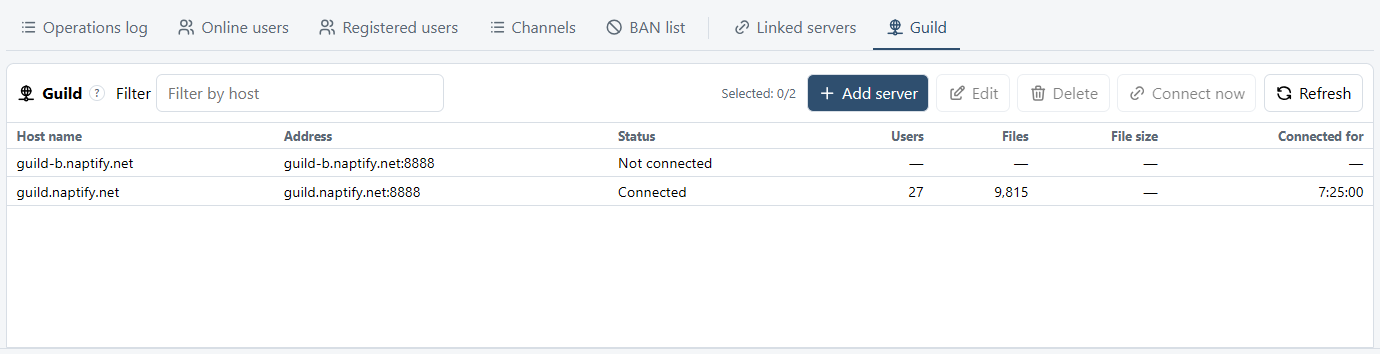
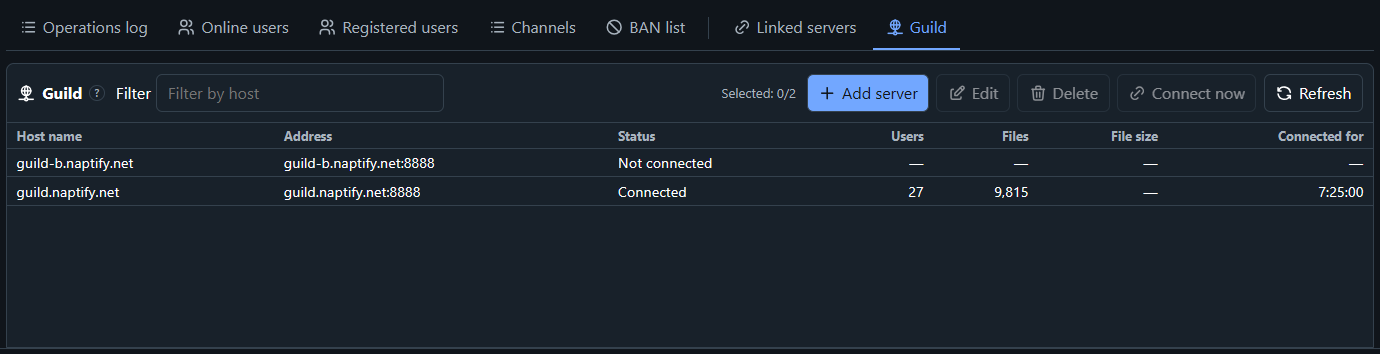
| Guild | All guild peers (Host name, Address, Status, Users, Files, File size, Connected for). The status is Connected, Connecting, Not connected, Disabled or Stopped |
| Add server | Set the peer host name, port, connect-to host (optional), shared key (hex), auto reconnect and a comment |
| Shared key (hex) | At least 16 bytes (32 hex digits). Register the same key on the peer server. A key made with “Generate key” cannot be shown again after saving |
| Connect now | Starts connecting to the selected peer |
Guild peers are only servers that have registered each other. A server cannot be both a link and a guild peer.
Guild is unavailable while this server is linked with a server that does not support it, such as FaceNap or SlavaNap.
Operation
Backup and restore
Automatic database backups, and restoring from a backup generation or a file.
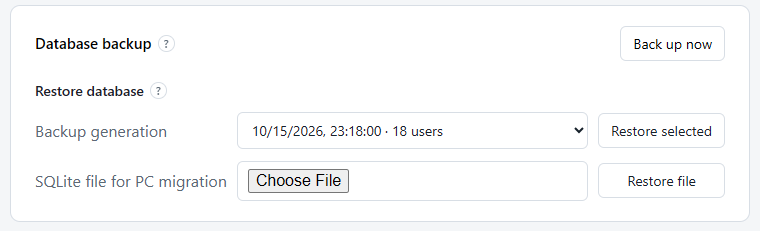
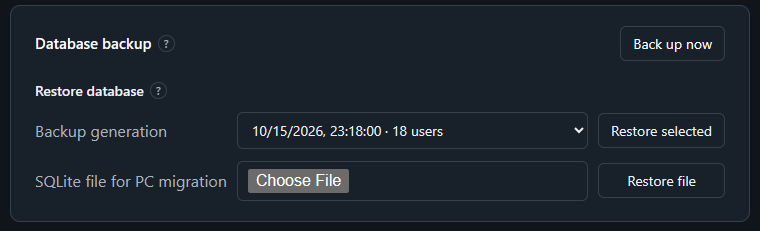
| Database backup | Backs up main.sqlite every hour when it has changed. Kept for the same period as logs (90 days by default) |
| Back up now | Backs up right away |
| Restore selected | Restores from the generation chosen in “Backup generation” |
| Restore file | Restores from the file chosen in “SQLite file for PC migration” |
| What is restored | Settings, users, audit records, statistics and secrets. The logs folder and the shares of logged-in users are not included |
Steps
- Open Data and logs in Settings.
- Choose the generation in Backup generation and select Restore selected. When moving from another PC, choose the file in SQLite file for PC migration and select Restore file.
- Restart the server. After the restart, every client must reconnect and upload its shares again.
Operation
Migration from FaceNap
Importing settings, registered users, bans, channels and linked servers from FaceNap.
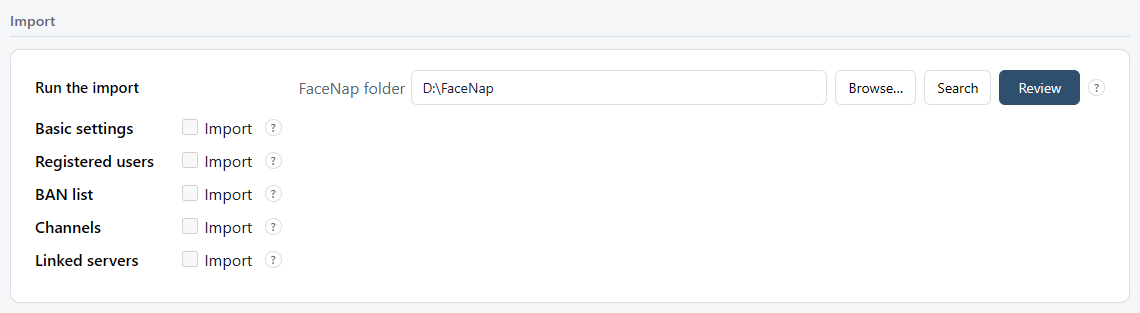
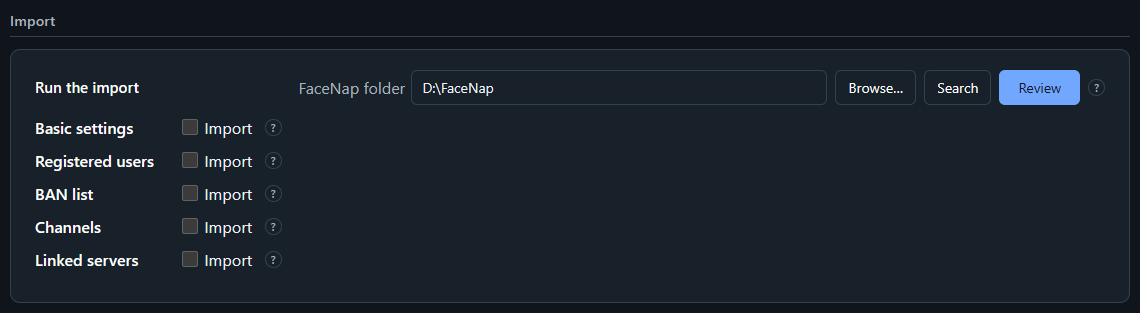
| Basic settings | Server settings from the FaceNap settings file (config), and the MOTD (motd). Settings that FaceNap does not have keep their current values |
| Registered users | Registered users from users. Current users are kept and users with the same name are overwritten. Users can sign in with their FaceNap passwords |
| BAN list | BANs from bans. A ban for the same user name and IP address is overwritten. Expired bans are not imported |
| Channels | Registered channels from channels. Choose the channels to import from the list; their channel messages (chmotd.channel-name) come too. A channel with the same name is overwritten |
| Linked servers | Linked servers from servers. A linked server with the same host name and port is overwritten |
| Encrypted password | Allows logins with the FaceNap encrypted password (the FaceNap compatibility section of Settings). The encryption key is the same value as FaceNap’s encryption key |
Steps
- Open Import in the contents of Settings.
- Enter the path of the FaceNap folder (a path on this server’s PC) in FaceNap folder and select Search. When the page is open on the server’s PC, you can also pick the folder with Browse….
- Check Import for each item you want and select Review.
- Check the overwritten items and the rest in Import review, then run the import. The database is backed up automatically just before the import, and the server restarts automatically afterwards. Connected users are disconnected for a moment.
Only config, motd, users, bans, channels, servers and chmotd.channel-name directly in the FaceNap folder are read, and nothing is written to the folder. The import adds to the current data and does not erase it.
To undo an import, use Restore database.
Operation
Troubleshooting
Common symptoms and where to look.
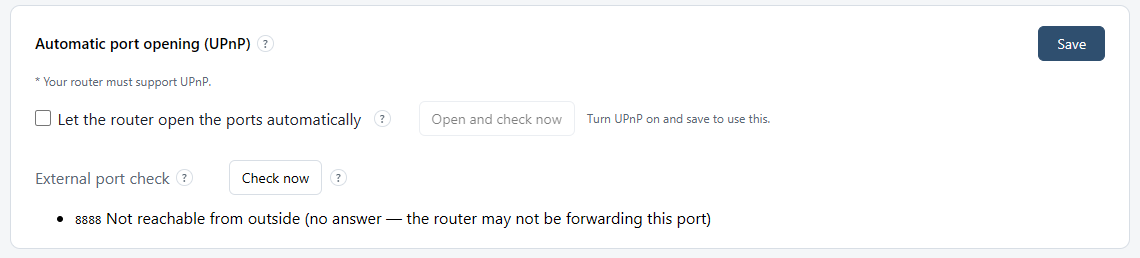
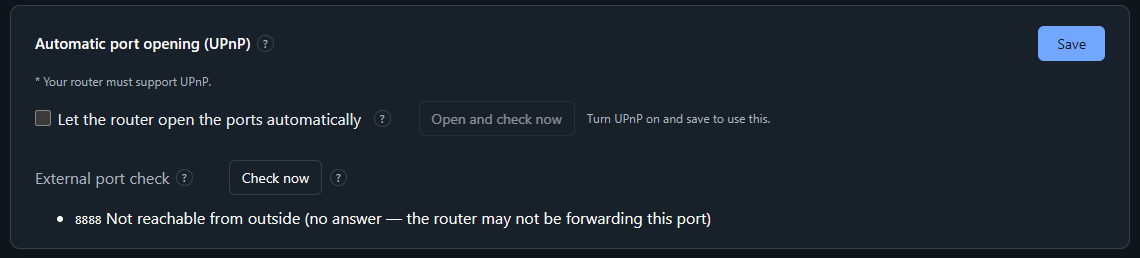
| Users cannot connect from outside | Run External port check in Connection settings. “No answer” points to port forwarding on the router; “refused or did not arrive” points to the router’s forwarding target or a firewall or security software |
| Users cannot connect by host name | Check the result under Host name settings. “Mismatch” means the dynamic DNS record may not have been updated |
| D-DNS.JP updates have stopped | Follow the notice in the notification area and check the email address, password and host under D-DNS.JP in Connection settings |
| Naptify Server is already running. | Open the admin page from the tray icon |
| Another Naptify Server is using the same data folder, or the folder permissions are insufficient. | Stop the other Naptify Server, or check the folder permissions |
| The admin page could not start listening. | Check that no other program is using the same port |
| Check the username and password. | The admin page login failed. Enter the user name and password set under Management access in Operation (they are separate from registered users) |
| The cause is unclear | Choose a span under Diagnostic log in Data and logs, then look at logs\diagnostic-YYYYMMDD.log |
If the problem remains, please let us know on the Support page.