A backup feature that pools free disk space offered by participants (Mesh Storage) and keeps your files there as encrypted Seeds spread across other participants. If your PC fails, you can bring your files back on a new one.
For shared files, the people who share the same file (Holders) are recorded, and the file is fetched from them when restoring. Only files with few Holders and files you do not share are stored as Seeds.
How your data is handled
- Only the files and folders you tick are stored
- Files are encrypted on your own PC before being split, so neither Keepers nor the server’s administrator can see file names or contents
- Keepers see only sizes and usage, not whose files they hold
- Both Split Keys are needed to decrypt, so the server alone cannot
- Backup work is light and runs in the background, without getting in the way of normal file transfers
Shared files (Aliases)
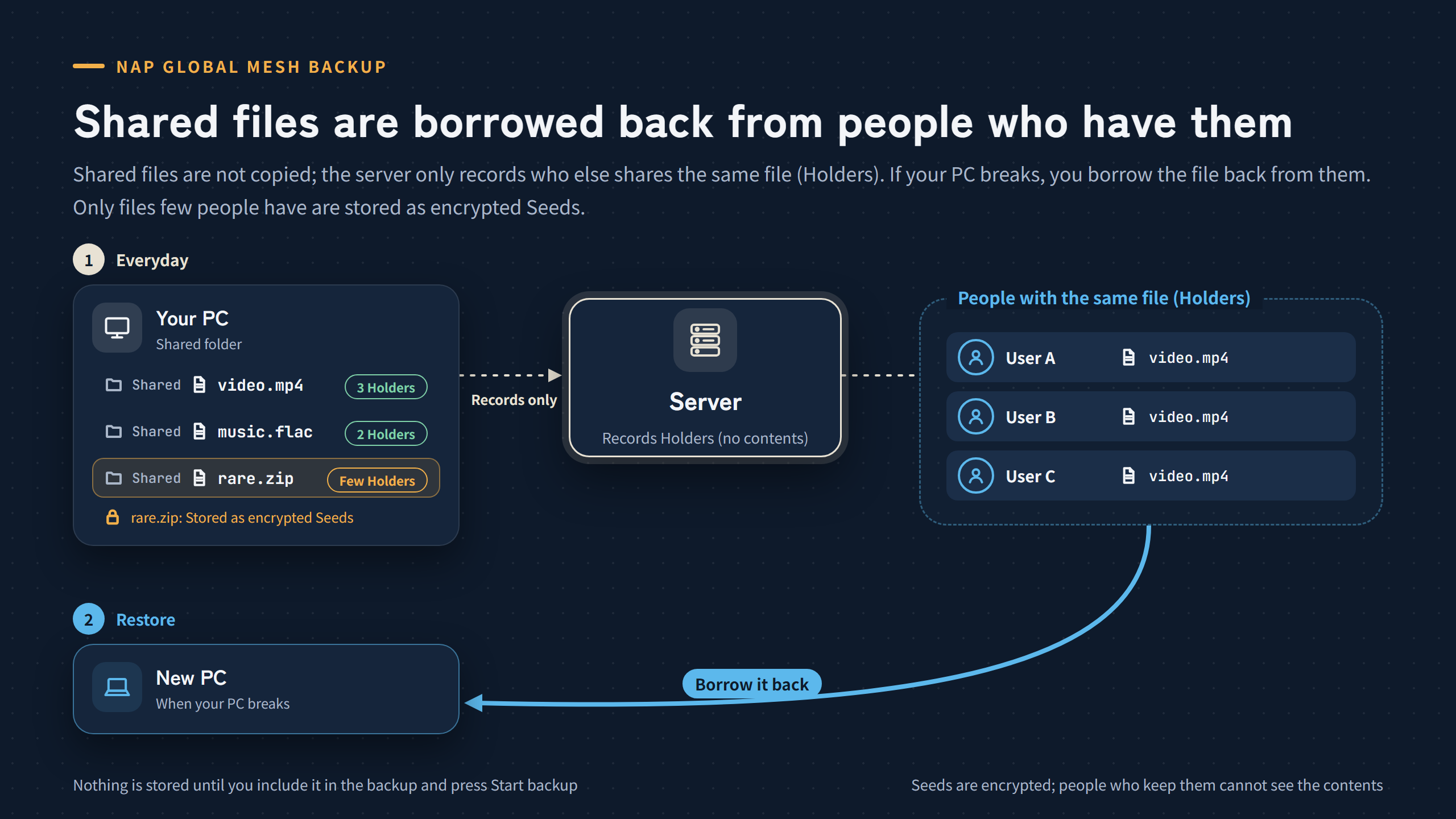
- Files with enough Holders are kept as a record of those Holders only (an Alias)
- Files with few Holders are stored as encrypted Seeds
- As Holders come and go, this switches automatically between the two
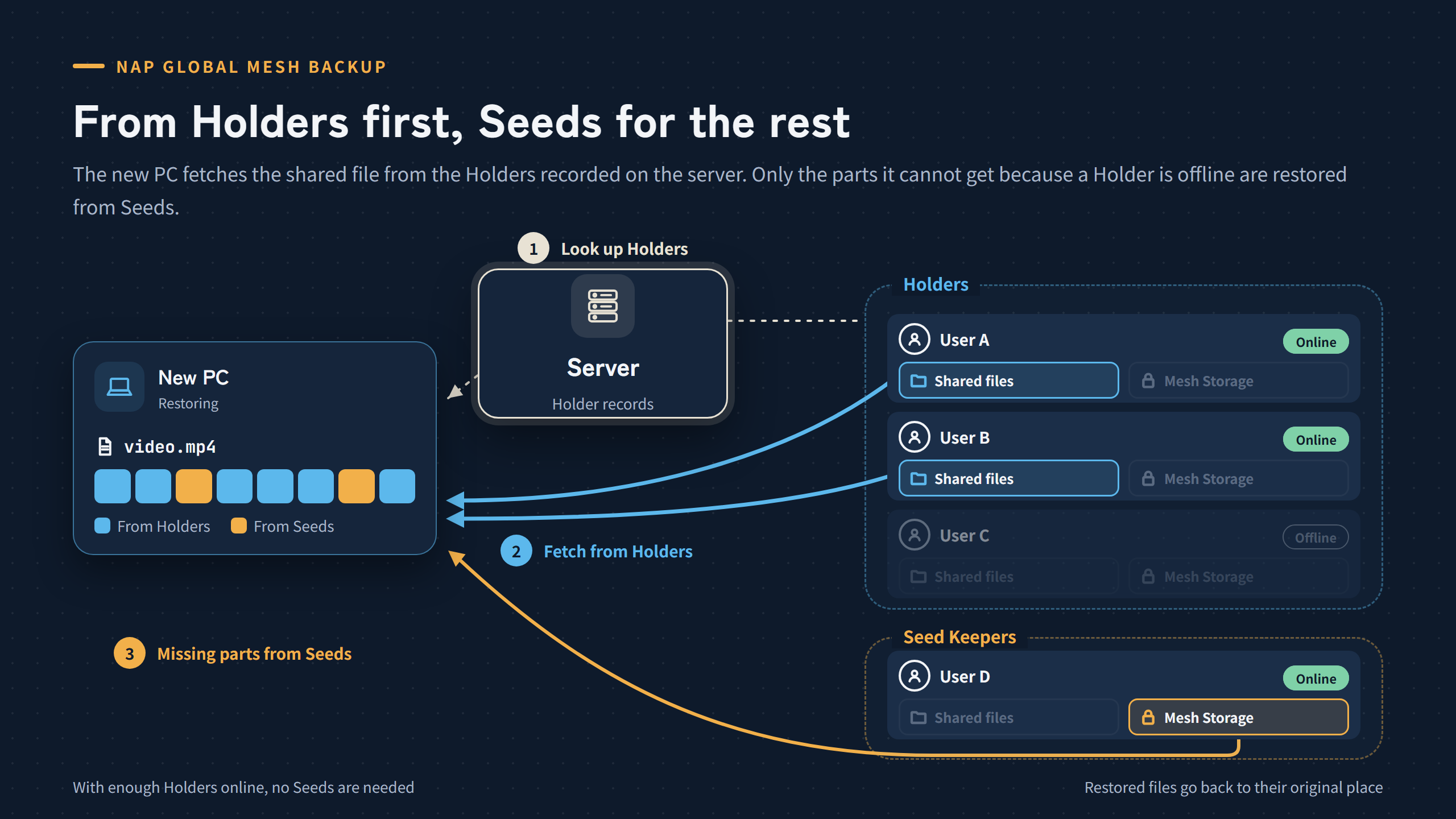
- When restoring, the file comes from Holders first, and only what is missing comes from Seeds
Private files (Seeds)

- Files are encrypted, split into extra Seeds and spread across other participants
- Only some of the Seeds are needed, so you can restore even if some Keepers are offline
- The Seeds stored add up to a few times to about 25 times the original file, and more when Keepers are online less of the time (for a 1 GB file: about 4 GB at a 50 % online rate, about 25 GB at 10 %)
- While there are few participants, one Keeper may hold several Seeds; they are moved as more people join
- Methods: XChaCha20-Poly1305 for encryption, Reed-Solomon for splitting into Seeds
Reliability shows how comfortably the Seeds needed for a restore can be collected. At 100 %, the target restore probability (99 %) is met.
Automatic Reseed
- The state is checked every hour; Seeds are added if Reliability stays low and removed if it stays too high
- Online rates are a 7-day average, so switching your PC off every night does not by itself trigger changes
- Only the PC that stored a file reseeds it
Encryption keys

The encryption key is kept as two Split Keys: Split Key (Server) on the server, and Split Key (Phone) created from your phone passkey each time it is needed and never sent to the server. Your sign-in password is not used for the key, so even after an administrator resets your password, you can restore the key with your passkey.
Requirements and getting started
- NAPTIFY Client connected over an encrypted connection to a NAPTIFY Server with Global Mesh Backup turned on
- A registered user account
- A passkey on your phone (needed even if you only provide Mesh Storage)
- A PC with Bluetooth (used to confirm that your phone is nearby during QR-code passkey sign-in)
- Providing Mesh Storage (on a PC that does not provide it, the backup checkboxes are greyed out and restoring is not available)
- On the “Backup” screen, set the location and size of your Mesh Storage
- Set up your phone passkey (scan the QR code shown on the PC)
- Tick the files and folders to back up
The more Mesh Storage you provide, the more you can store. Settings and backup records are kept per PC, and a PC with a reinstalled OS counts as a different PC.
Restoring
- Sign in to NAPTIFY Client on the new PC
- On the “Backup” screen, set the location and size of your Mesh Storage
- Restore the encryption key with your phone passkey
- Press “Restore lost files” (everything missing from its original place is restored)
- Existing files are not overwritten
Contribution Score
A measure of how much you help other users’ backups. It sets how fast you can restore.
- It grows with Seeds you accept, Aliases and Restore Assists, and goes down when you restore
- If you do not answer checks or refuse to keep Seeds, it falls gradually (it recovers once you answer correctly)
- If you fake Seeds, it drops at once
What the server does
- Relaying exchanges with Keepers and Holders, and issuing permits
- Recording where Seeds are kept (without file names or contents)
- Regularly checking that Keepers still hold their Seeds
- Keeping Contribution Scores, the encrypted Backup Ledger and Split Key (Server)
- Seeds travel directly between NAPTIFY Clients, never through the server
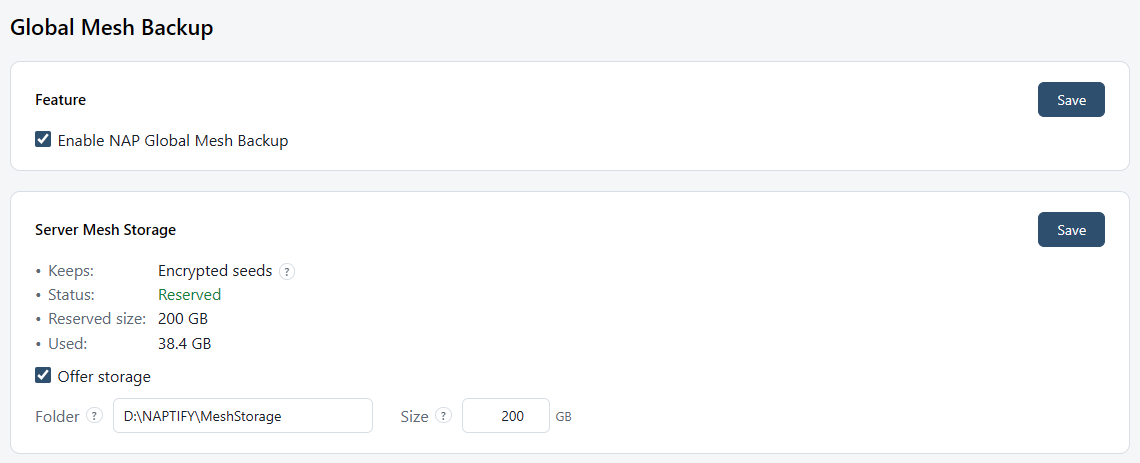
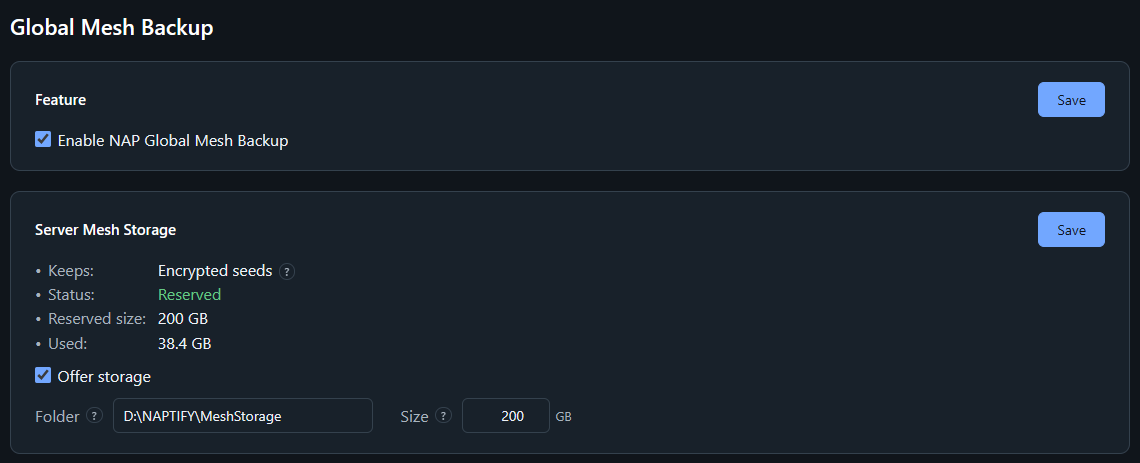
For operators: turn on Global Mesh Backup with “Enable NAP Global Mesh Backup” under Settings → Server and connections → Global Mesh Backup in the admin page (off by default). To provide Mesh Storage on the server, tick “Offer storage” and set the folder and size (the size is reserved on that drive in advance). If both the records file and its backups are lost, users can no longer restore, so keep the backups on another drive.
Several servers, links and guilds
- If you join several servers, Seeds are stored separately for each, so you can restore through another server if one stops
- Linked servers are treated as a single server, so Seeds are also exchanged with participants connected to the linked servers
- Seeds are not exchanged with guild partner servers
- A server with Global Mesh Backup turned on requires encrypted links and does not link with existing servers such as FaceNap or SlavaNap
Cautions
- If you lose the account that stores your passkey (such as Google or Apple), you cannot restore
- On Windows 10, passkey sign-in opens a naptify.net page in your browser (Chrome or Edge). If the browser asks for permission to access the local network, allow it; if you refuse, the result cannot reach NAPTIFY Client
- Your backup records are deleted 90 days after you last took part
- If your PC fails, its files are no longer reseeded, so restore soon
- A restore proceeds day by day and may take several days